|
This utility was my first experiment with sending e-mail messages.
Though largely superseded by the powerful MMAIL commands mentioned in Main utilities
and the SendMail procedures presented in Service program,
this utility retains some value, as it allows newbies to start understanding how mail messages can be structured.
It is therefore recommended not to use the commands of this utility for production, but to use instead the ones documented in the Main utilities.
The MIME & Mail 5250 Utility is started by command
mmail/mimemenu
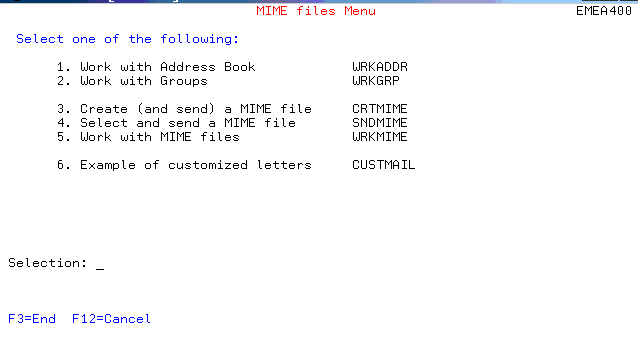
which displays the following menu:
Figure 1- mmail/mimemenu
There are six options there.
Each option can be called from this menu, or it may be called
from the related command. As an example, command mmail/wrkaddr
would let you work with the Address Book.
Some quick walk throughout this menu
- Work with Address Book.
When the time comes to send a MIME file, the utility will ask you
to specify its distribution. Though you are allowed to key in
the e-mail addresses of the recipients, it is recommended to select
addressee names from an Address Book and or to select Groups
(distribution lists). This is why you need some option to maintain
the Address Book.
- Work with Groups.
Groups (distribution lists) are collections of mail addresses.
You may select groups as destinations of some MIME file,
as well as you can select individual entries from the Address Book.
- Create and Send a MIME file.
This is a main part of the utility.
This function allows you to create a MIME file and to save it
on a given IFS path. A guided process will build for you all the
necessary HTTP headers, will let you embed text(s) and images
(if you care), will let you attach (binary) files.
When finished, you will be able to save the file.
Worth to be noted that the file saved is missing the Sender and
the distribution MIME headers (to, cc, bc).
This is done on purpose. In this way, in fact, you will later
be able to send this MIME file as many times as you like.
After saving the file, you are asked whether you want to send it.
If so, you are asked to
- enter the Sender data
- specify the destinations by selecting Address Book entries
and / or by selecting groups.
- send it
- Select and Send a MIME file.
This is another main part of the utility.
You are browsed a list of the existing MIME files
(the ones created with the previous option,
Create (and Send) a MIME file). You
- select the one you want to send
- enter the Sender data
- specify the destinations by selecting Address Book entries
and / or by selecting groups.
- send it
- Work with MIME files.
This option allows you to maintain your collection of
MIME files
- Example of customized letters.
Suppose you want to send a MIME file to selected customers.
Suppose also you want to put some customized data in the text,
such as customer name, some customer data, etc.
This example shows how you can define variables in the
text and have them substituted with data read from your customer
file. Worth be investigated for similar cases.
Appendixes
- Appendix A- Various ways to arrange images
There are a number of different ways to arrange images
within the body of the MIME message.
Click on the topic you want to explore in depth:
- Work with Address Book
- Work with Groups
- Create (and Send) a MIME file
- Select and Send a MIME file
- Work with MIME files
- Example of customized letters
- Appendix A
|