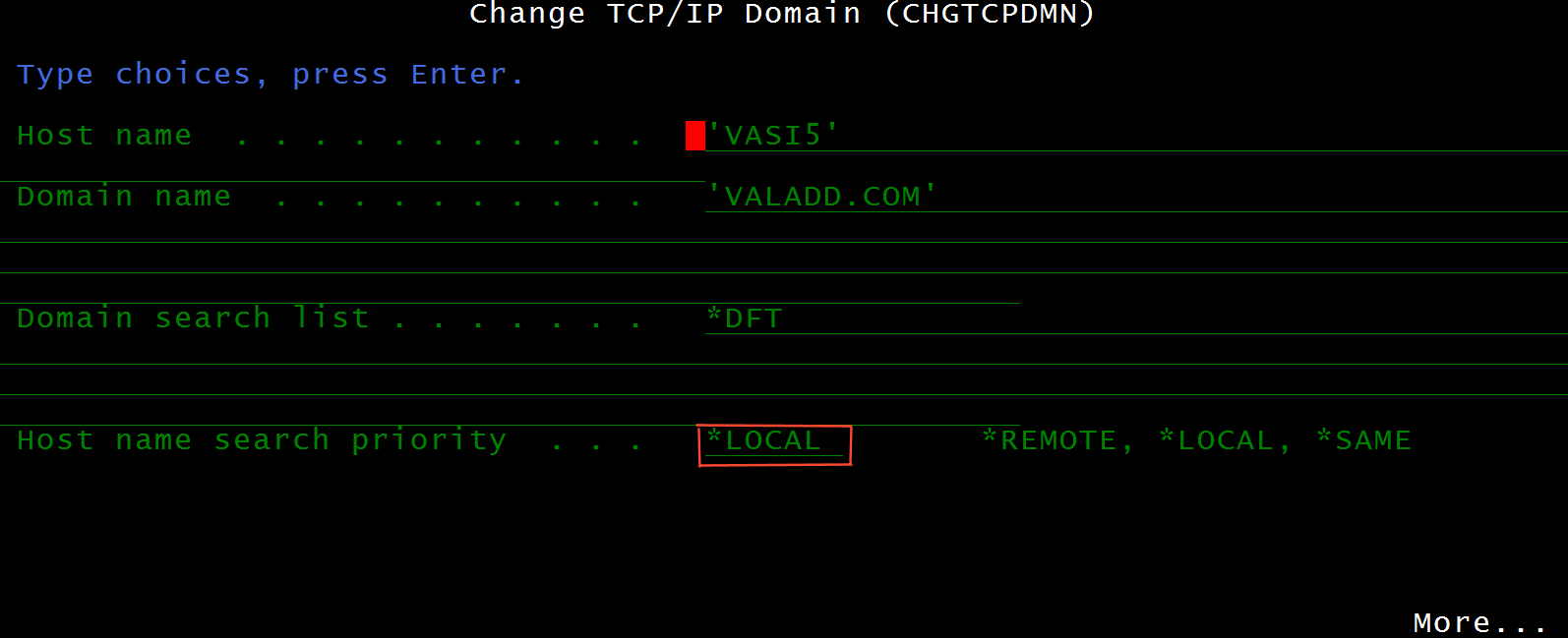
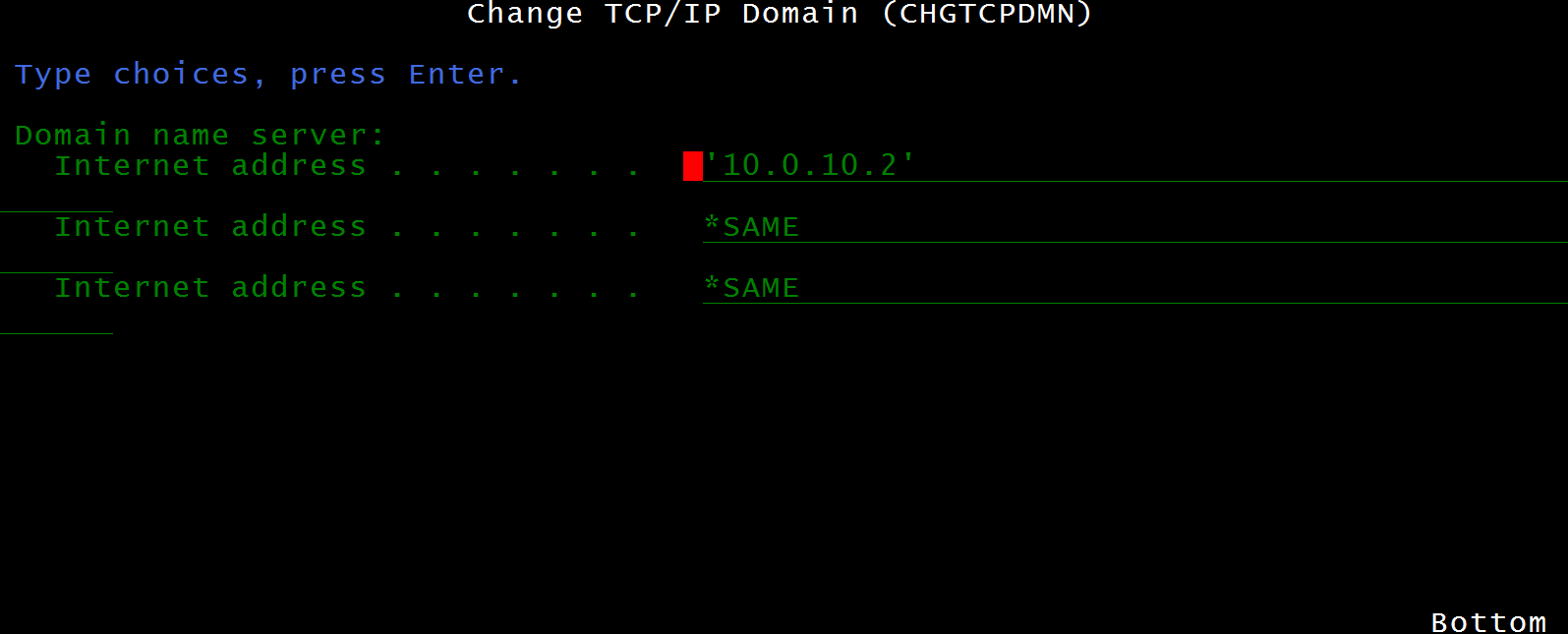
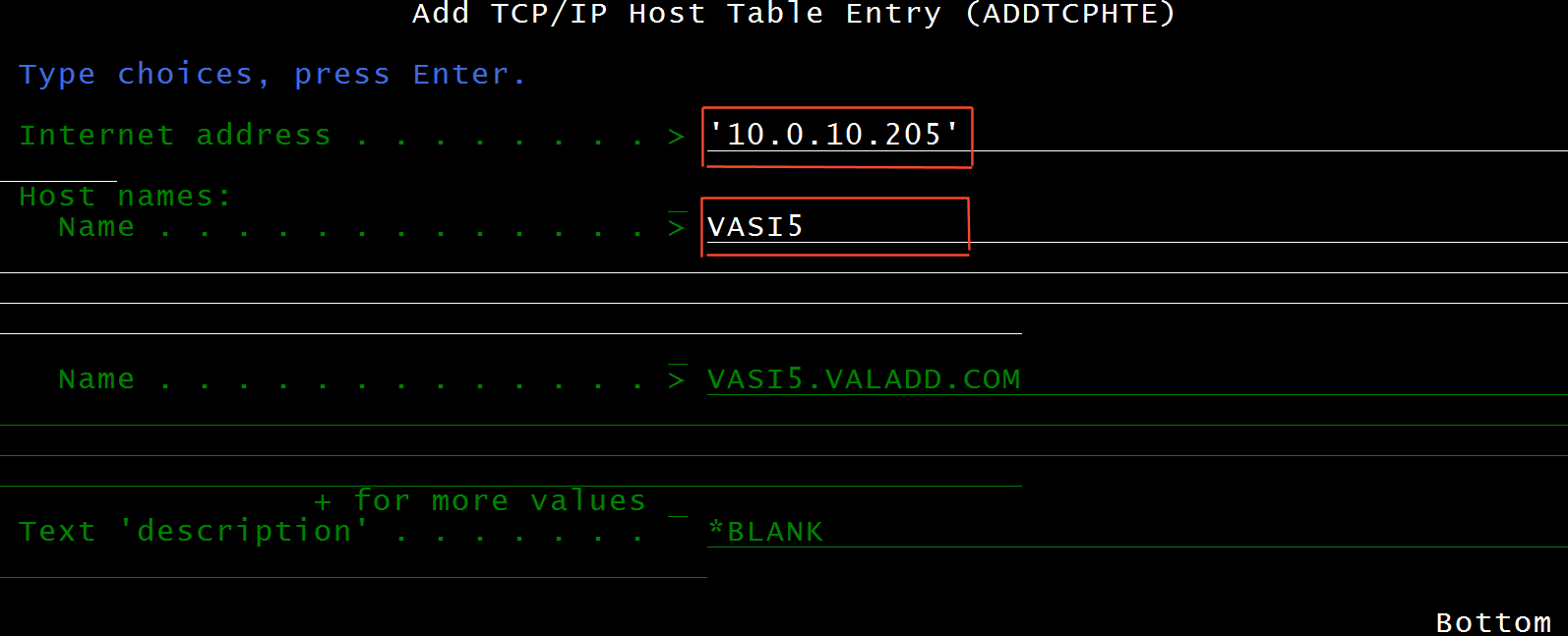
By local user we mean an user who
- has no mail address registered at an Internet Service Provider (ISP)
- has HTTP access to an iSeries equipped with the AMailer utility
- wants to be enrolled as AMailer users, in order to exchange mail with other local users
and occasionally send mail to Internet mail users (though a local user cannot receive mail from them)
An example of such users could be the employees of a company owning an iSeries box.
In order to support local users, some TCP definitions must be set and/or retrieved.
This is how you do it.
How local users may send / receive mail with their PC's
Once local users have been defined to the iSeries through the process
mastered by AMailer (see Define an Internal User),
they can send / receive mail through the AMailer webmail (see Work as a user)
or even better through their PC mailer (Outlook, Firefox, Lotus Notes, or what you have).
In short, what you have to do with you PC mailer is to define an account that would allow to send and to receive mail
by asking services to the iSeries SMTP and POP servers (of course the client PC's must be in a LAN or a VPN with the iSeries).
The following example shows how you can define such an account with Outlook Express (other PC mailers are similar).
In the example we are making the following assumptions:
- The iSeries domain to be used for defining local user e-mail addresses is
VASI5 (associated to the iSeries active interface 10.0.10.205, as per Figure A2B).
- The iSeries SMTP server and POP server are to be contacted at IP address 10.0.10.205
(the SMTP server on standard port number 25, the POP server on standard port number 110).
- In this example we want to define an Outlook Express account for Johnny Smith.
This user has already been defined to the iSeries via AMailer, see Figure 3A2- Creating a local user account from scratch
with the following data:
- e-mail address: jsmith@VASI5
- password: (to be remembered)
- user profile assigned: OLV3IXBW, see Figure 4- Existing user accounts
To define the Outlook Express account for Johnny Smith, do the following:
- In your Outlook Express select Tools-->Account... to receive the Internet Account pop-up
- Press the Add button and select electronic mail to receive the User Name pop-up
- Type Johnny Smith and press the Next button to receive the Address for Internet mail window
- Type jsmith@VASI5 and press the Next button to receive the Mail Servers Names window
- On the Mail Servers Names window
- for the Incoming Mail Server is... select POP3
- for the Incoming Mail Server (POP3, IMAP or HTTP) type the iSeries IP address 10.0.10.205
- for the Outgoing Mail Server (SMTP) type the iSeries IP address 10.0.10.205
then press the Next button to receive the Access to Internet Mail window
- On the Access to Internet Mail window
- For the Account name type the user profile assigned to this user: OLV3IXBW
- For the Password type the same password that was specified when defining this local user account to AMailer
(see Define a new local user account from scratch)
- Check the box Save password
then press the Next button to receive the completion window, where you must just press the End button.
|